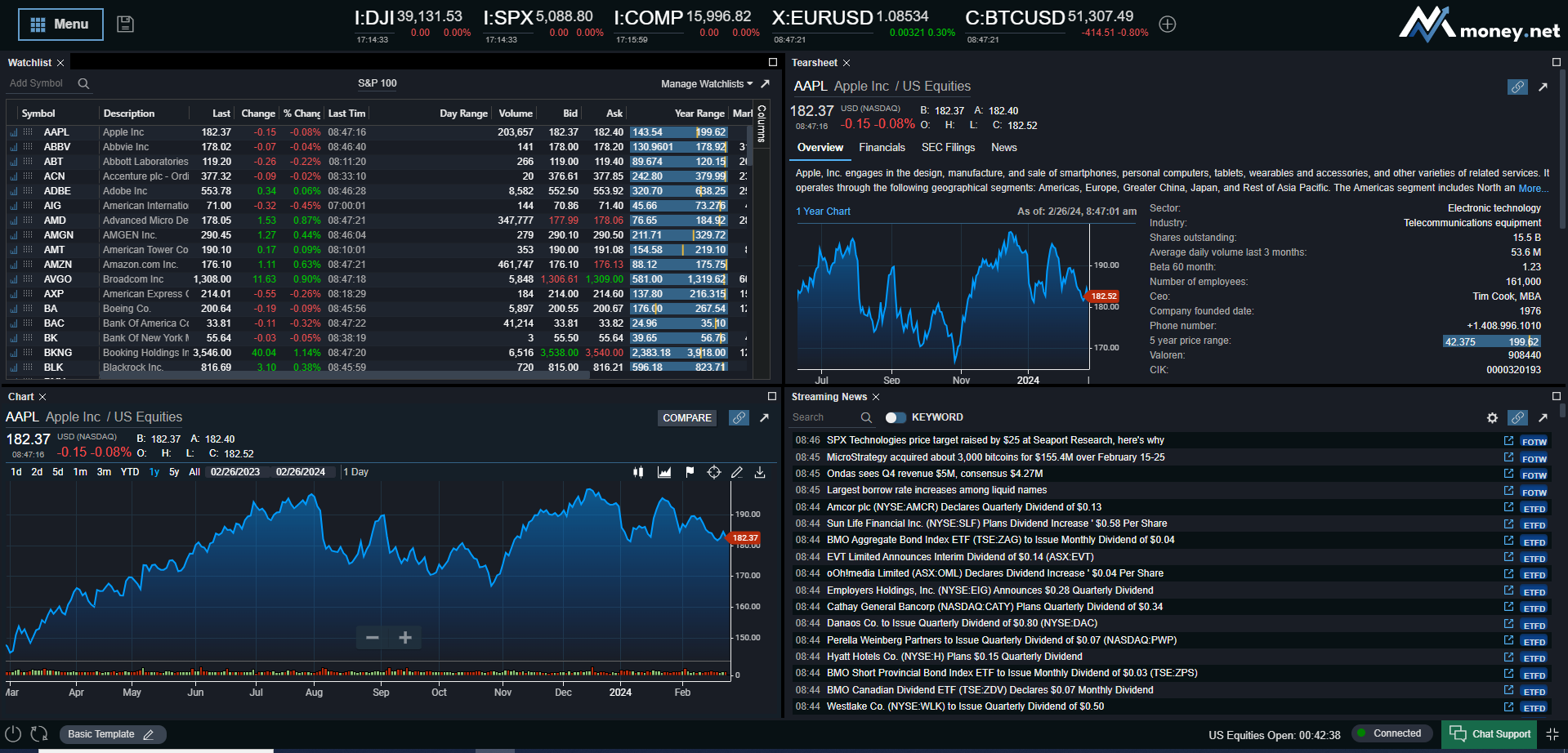
You may not have Java installed or your current version is corrupted. Go to www.java.com and follow the quick and easy download instructions. This must be done even if you feel you already have Java.
You may not have accepted the Java support or security warning when launching Money.Net.
Your internet security settings are set too high. Go to your browsers settings and set the Internet security setting to Medium.
You have a security program blocking the data such as Norton or McAfee. Configure that specific software to allow content from www.money.net and www.pcquote.com. If the above fails go to www.java.com and follow the quick and easy download instructions even if you feel you already have Java.
This may be due to pop-up controls or pop-up or ad blockers/stoppers on your computer. If you have such programs on your computer, please either enter settings that enable our services (with Java) or disable your pop-up controls on your computer completely. The pop-up blocker may have been inadvertently installed. It can commonly be found on your tool bar with a red circle and line going through it.
Yes, the data in Money.Net can be exported or transferred into a spreadsheet, like Excel. To do this, click the “Export” button on the top right navigation bar and select where you would like to export.
Apple's Safari web browser on the iPad and iPhone currently does not support Java natively. Java is required to run Money.Net. Don't worry. In order to access Money.Net on your iPad or iPhone, we recommend downloading and running the App 'AlwaysOnPC Chrome Flash & Office Suite on Virtual Cloud Desktop'. Running this App will allow you to run Money.Net on your mobile Apple device. The App can be purchased from the App Store
Yes.
Calculated Indexes
Please keep this list as a reference:
| Exchange or Index Symbol | Symbol |
|---|---|
| Dow Jones Industrial Average | I:DJI |
| Dow Jones Transport Average | I:DJT |
| Dow Jones Utilities Average | I:DJU |
| NASDAQ Composite | I:COMP |
| NASDAQ 100 | I:NDX |
| NASDAQ-100 Pre-Market Indicator | I:QMI |
| NASDAQ-100 After Hours Indicator | I:QIV |
| S & P 500 | I:SPX |
| S & P 100 | I:OEX |
| NYSE Composite | I:NYA |
| Semiconductor Index | I:SOX |
| Internet Index | I:IIX |
| Volatility Index | I:VIX |
| NYSE TICK Index | I:TICK |
| NYSE ARMS Index | I:TRIN |
| 30-year bond | I:TYX |
| 10-year note | I:TNX |
| 5-year note | I:FVX |
| Gold & Silver Index | I:XAU |
Yes. Once Money.Net window appears, you may continue to trade and/or browse in your original browser. You may minimize the current browser window to the task bar and open another window for trading or browsing. You may also link to your trading account from “Tools” on the top left navigation bar, and then select “Trade”.
Click on "snapshot", "portfolio snapshot" & then go to "file" & "print".
Type in "$blank" & then click "add symbol". You can drag this row up or down to separate your data to your preference. Make sure to click the SAVE SETTINGS tab above Money.Net when done and before exiting.
An "Option Chain" lists option quotes in order of strike price for present and future months for a given symbol. This feature makes it easier to find the option quotes you are looking for. To view option quotes, type in any symbol (i.e.: dell), and click on the "Option Chain" button located on the top. You can also add the option quote of your choice to your portfolio list by right-clicking your mouse.
The Real-Time Services options symbology structure will have the following format: Example - GOOGLE Dec 2011 470.00 call: O:GOOG\11L17\470 .0
| O | Instrument type [option] |
| : | Delimiter |
| GOOG | Two, three or four character option symbol [same as in the root symbol] |
| \ | Delimiter |
| 11 | Two digit expiration year |
| L | One character code for expiration month on call/put side [L = December call] |
| 17 | Two digit expiration day [3rd Saturday of the month] |
| \ | Delimiter |
| 470.0 | Strike price [note space before decimal place] |
| Month Codes | Call | Put |
|---|---|---|
| January | A | M |
| February | B | N |
| March | C | O |
| April | D | P |
| May | E | Q |
| June | F | R |
| July | G | S |
| August | H | T |
| September | I | U |
| October | J | V |
| November | K | W |
| December | L | X |
To sort any column, you need to click on the column header of the column you want sorted. Click once for ascending and again for descending. Make sure to click the SAVE SETTINGS tab above Money.Net when done and before exiting. Make sure to click the SAVE SETTINGS tab above Money.Net when done and before exiting.
You may have sorted by a column such as % change. You will need to sort on an appropriate column such as Symbol, Description or Exchange. Simply click on the column header of the column you would like to sort on. Click once for ascending and again for descending. Make sure to click the SAVE SETTINGS tab above Money.Net when done and before exiting.
Your credit card may have been declined for various reasons. Please email our billing dept. at billing@money.net to advise them you would like to update your credit card or call 888-860-4800.
Click on the particular symbol to launch a pop-up menu. Click on "Edit Holdings/Alerts", make your entry & click "Apply". Mac users need to hold the Control key + Click on the symbol to see the pop-up and the menu will stay visible until you make your selection. Make sure to click the SAVE SETTINGS tab above Money.Net when done and before exiting.
Click on the "Edit Portfolios" button which is located on top. Here you can add up to 10 portfolio lists of 50 symbols in each list. You can also view or rename your current portfolios as well as delete any of them. The total symbols you may are unlimited. Make sure to click the SAVE SETTINGS tab above Money.Net when done and before exiting.
Click on the "Preferences" button, and then choose the column (under "Available") that you would like to view & click on the plus sign, the column will then be transferred to the viewable box & you will be able to see it on the Real Time Tracker. Make sure to click the SAVE SETTINGS tab above Money.Net when done and before exiting.
Click on the symbol that you want to enter sale for. On the drop-down menu, click "Edit", then type in the negative shares amount (i.e.: -100) in the "Number of Shares" box & press "Apply" at the bottom. Make sure to click the SAVE SETTINGS tab above Money.Net when done and before exiting.
TTo change your billing information, please call Customer Service at 1-888-860-4800. You can also email billing@money.net.
Place your mouse on the column you want to move, left-click your mouse & hold it down at the same time to drag the column while moving the column to your desired position. Make sure to click the SAVE SETTINGS tab above Money.Net when done and before exiting.
YES, you can view a few applets simultaneously, i.e.: "Live Charts", "Intra-day charts" & "Time & Sales" can be viewed while you have Money.Net running.
Move your cursor to the particular field header & place it between the field you want to resize & the next field until you see a double arrow, then click on the mouse & drag it to a preferred size. Make sure to click the SAVE SETTINGS tab above Money.Net when done and before exiting
On top right-hand side of the Real Time Tracker, click on "Preferences", then on the bottom, click the drop-down & choose the font size and colors that you prefer & click on "OK." Make sure to click the SAVE SETTINGS tab above Money.Net when done and before exiting.
Yes, you can view up to 5 charts simultaneously. To load multiple charts, just minimize the chart being viewed presently & load another chart from the same place you loaded your initial chart.